1. Decide what you want QR ordering to fix
Before you set anything up, be clear about the problem you are solving. Too few staff at peak times? Guests waiting too long to order? Misheard orders? Lots of tourists? Your goal decides what to focus on and what to measure afterwards.
Decide too whether table ordering will sit alongside your waiters or replace them taking orders. In most restaurants, cafés and bars the two work happily together: guests who like ordering from their phone can, and the rest can still talk to a person. In Qrolla every order is confirmed by staff with an estimated time, or rejected with a reason, so you stay in control.
Do not go live on a Friday night. A quiet weekday lunch gives the team room to get comfortable.
3. Photos, allergens, options and translations
Photos: you do not need a professional, but the pictures matter. Shoot in daylight near a window, from above or at 45 degrees, on the plate the guest will actually get. A dark, blurry photo is worse than none. Start with your 10–15 best sellers.
Allergens: Qrolla lets you mark all 14 EU allergens on each dish. Do not fill these in from memory; go through the recipes with your head chef. Guests rely on this information, so it has to be accurate and updated whenever a recipe changes.
Options: think about what your waiters ask out loud today. Which side? How would you like it cooked? Small or large? Those become option groups: required or optional, single or multiple choice, with or without a surcharge. You can also set removable ingredients such as onion, and guests can add a note for the kitchen. Do not put five required questions on a simple dish, or guests will give up.
Translations: if you get many international guests, add English and German names and descriptions for each dish. Qrolla does not translate automatically, but once they are in, the guest page switches language to match the phone, while the kitchen always receives orders in your own language.
4. Tables and QR codes: printing for durability
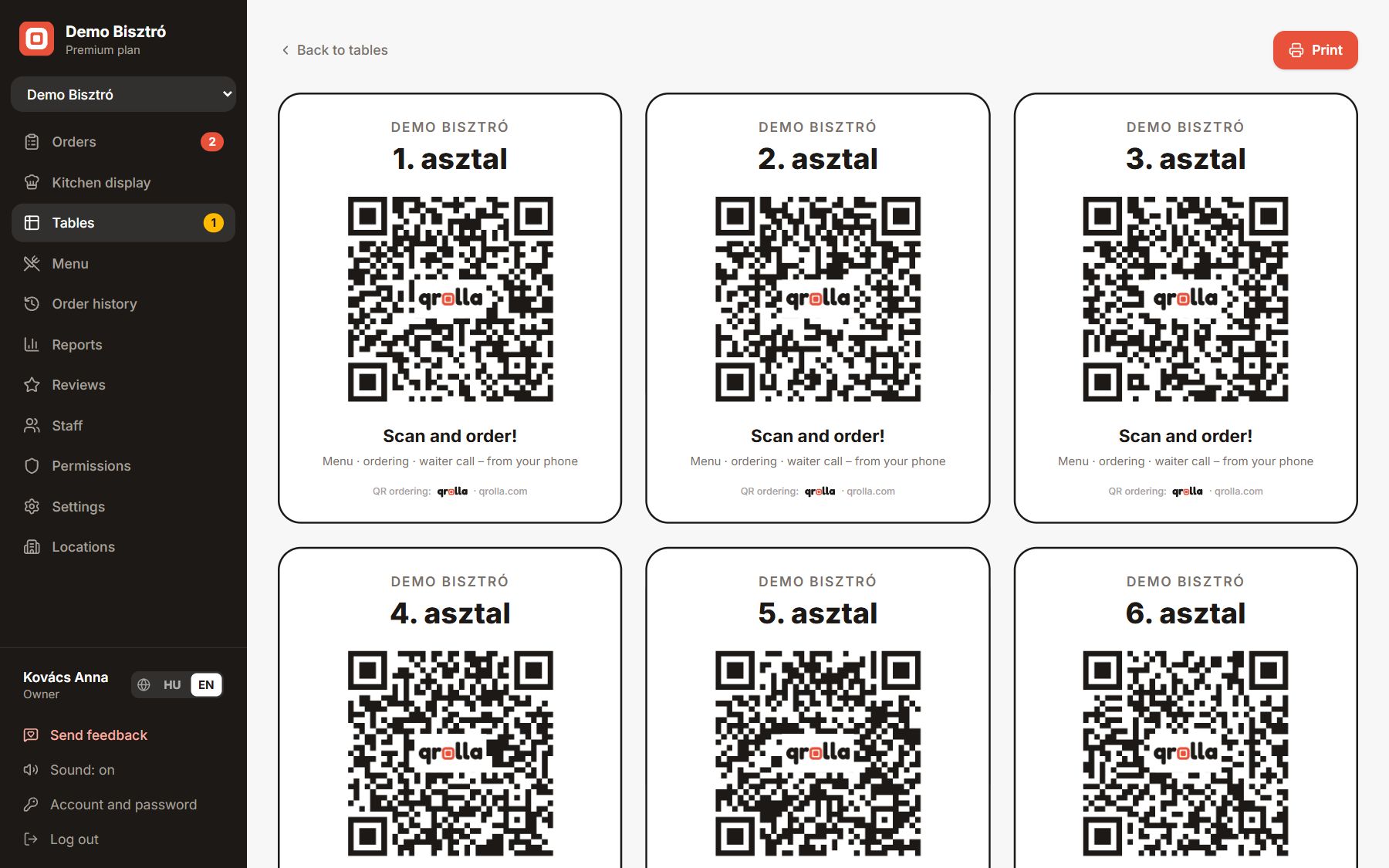
Every table gets its own QR code, so orders arrive already tagged with the right table. Name your tables the way your staff actually refer to them: if everyone calls it “terrace 3”, use that. Then check that the number on each card matches the physical table.
If a code gets damaged, or you suspect someone has photographed it to misuse it, you can regenerate it in one click. There is also built-in protection: a scan opens a two-hour ordering window, and reopening the page later from browser history only allows browsing, not ordering. That rules out prank orders placed from home.
Qrolla generates a printable A6 PDF card for each table, or an A4 PDF with four cards per page, with the Qrolla logo in the middle of each code. When printing, keep these in mind:
- Print the code at least 3–4 cm wide so older phone cameras read it quickly
- Choose a matt finish, as glossy lamination reflects overhead lights
- Laminate cards or use acrylic table stands, since they will meet spills and sanitiser
- Outdoors, use waterproof, UV-resistant stickers or weighted stands that will not blow away
- Keep spare cards behind the bar for quick replacements
5. Where to place QR codes on tables
A well-placed code is noticed within seconds of sitting down. If you push tables together for groups, decide in advance which code counts and tell the team, so everyone knows which table the order will come through on.
What tends to work:
- A table stand in the centre or on the wall side of the table, facing the guests
- Stickers on the tabletop only where tables are never pushed together
- At the bar, one code per seat or per section
- Not behind the salt and pepper or a candle, and not where plates will cover it
- Away from direct light, as glare on the surface makes scanning harder
6. Kitchen workflow: stations and printers
QR ordering only speeds things up if orders reach the right person quickly. Sketch your current flow (who takes orders, where tickets go, who runs drinks and food) and mirror it in the system.
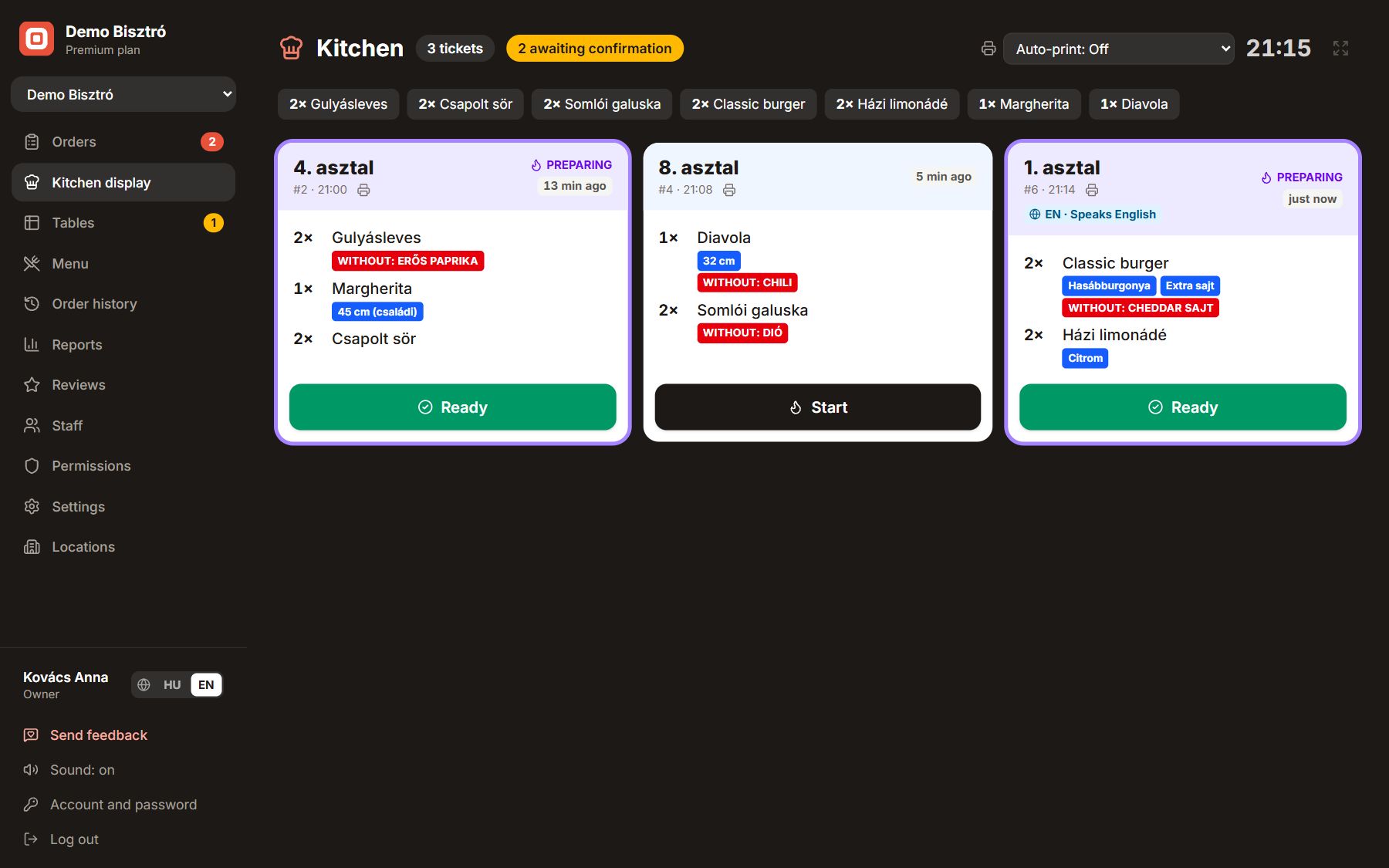
Qrolla starts with two stations, Kitchen and Bar, and you can add up to ten in total, such as Grill, Pizza or Desserts. You assign categories to stations, individual dishes can override their category, and drink categories go to the bar automatically. Each device chooses which station it shows; a small venue can run one combined kitchen display in “All stations” mode.
If you want paper as well, an 80 mm thermal printer at each station prints only that station’s items, with the station name on the ticket. You choose per device whether to print on new orders or on confirmation. To print without a dialog box, launch Chrome or Edge with the --kiosk-printing flag. Test this before launch, not with your first real guest.
On the kitchen display system, tickets change colour as time passes, removed ingredients (“WITHOUT: onion”) and notes are highlighted, and a running total shows how many of each dish are needed. Cooks tap “Start” and then “Ready”, and waiters and guests see it instantly. A guest who changes an order before preparation starts sends it back for re-confirmation, and the ticket reprints automatically.
7. Train your staff
Most rollouts fail because of people, not technology. Explain why you are doing it: less running about, fewer wrong orders, more time for guests. Waiters should see it as help, not a threat.
Give everyone access through the right role. Qrolla has built-in owner, manager, waiter and kitchen roles, and you can create custom roles with their own permissions. The kitchen sees the kitchen display, waiters see orders and tables, and not everyone needs access to reports.
Name one person per shift who knows what to do when something goes wrong: how to reprint a ticket, mark a dish as sold out or regenerate a code.
Run a 30–45 minute rehearsal before opening. Sit two or three colleagues down as guests, have them order from their own phones, and let the team work through the whole flow:
- Confirming an order with an estimated time, and rejecting one with a reason
- A guest changing an order, and staff re-confirming it
- Handling waiter calls and bill requests
- Taking drinks out when the bar is done but the kitchen is not
- Marking a dish as sold out with one tap
- Closing a table and recording the payment method
8. Tell your guests
Guests need to know two things: that they can order from their phone, and that they do not have to. A short line next to the code goes a long way, for example: “Order from your phone: just scan the code, no app needed. Prefer to order in person? Just ask.”
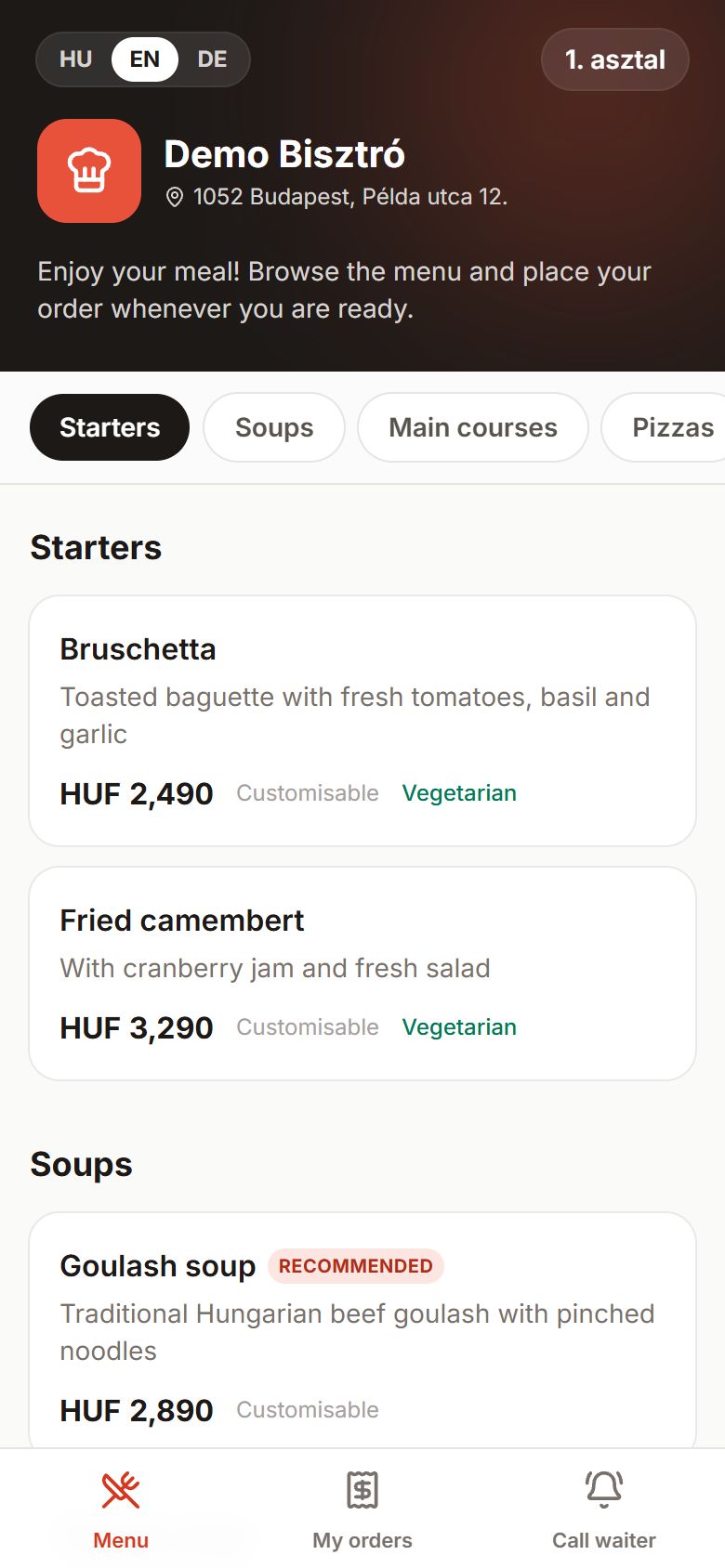
A sentence from the waiter is worth more than any sign. When seating guests, this is enough: “Good evening! You can order from your phone with the code on the table; photos and allergens are all there. If you need me, just wave, or tap the call button on your phone.” The guest page has buttons to call a waiter and ask for the bill.
International guests benefit most: the menu opens in English or German to match their phone, provided you have added translations, and a language badge on the order board tells staff which language to greet them in.
A small sign on the door (“You can order by QR code here”) helps in the first few weeks, but do not cover the place in posters.
9. Handle your first busy night
Your first Friday or Saturday is the real test. Expect some guests to order through the waiter anyway. That is fine: do not push it, just watch which tables take to it and where guests get stuck.
Stock counts earn their keep on a busy night. They reset at 4 am, guests see “only N left” when 5 or fewer remain, and the dish sells out automatically at zero, so nobody has to track the last portion.
After closing, take five minutes as a team: what went well, what got stuck, and what needs changing before tomorrow.
A few things that make a big difference during the rush:
- Turn on sound alerts on the order board and keep the device within earshot
- At peak times, have one person whose main job is confirming orders
- Give realistic estimated times: if it is 25 minutes, do not say 15
- Set stock counts for limited items
- Mark sold-out dishes immediately rather than letting guests find out
- Charge every tablet before service and keep a charger by the bar
10. Measure the results
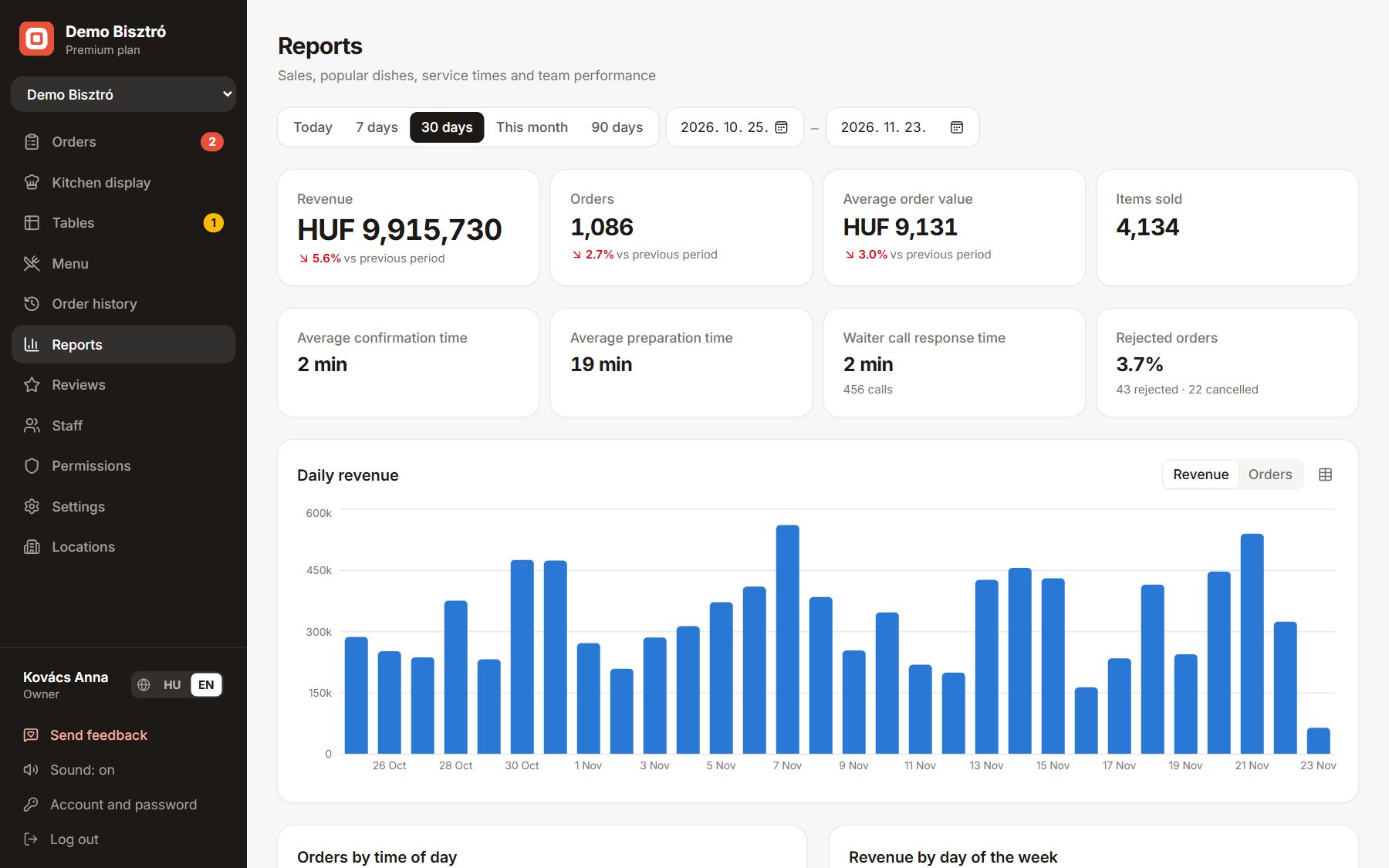
After two or three weeks the numbers start to mean something. Qrolla’s reports show revenue, peak hours, best sellers and extras, service times (confirmation and preparation), team performance and ratings, and you get a monthly summary by email.
With star ratings, happy guests are invited to leave a Google review, while complaints stay private, so you can respond to them. Order history exports to Excel or CSV for your spreadsheets or accountant.
Bear in mind that Qrolla is not a till. Receipts, end-of-day reports and official tax reporting stay with your existing systems; Qrolla’s reports cover ordering and operations.
Questions worth answering after the first few weeks:
- How many orders come in by QR code each day, and how is that changing week by week?
- How long do orders wait for confirmation at peak times?
- Have sales of extras and sides gone up since you added suggestions?
- Which dishes sell less than you expected, and would a better photo or description help?
- How are your ratings trending in the first month?
11. Common mistakes to avoid
The good news is that a digital menu can be fixed on the spot: a bad photo, a missing allergen or a wrong price takes minutes to change, with nothing to reprint. Still, it is easier to avoid these from the start:
- An out-of-date menu, with prices or dishes that no longer match reality
- Making QR ordering compulsory: some guests dislike it, so keep the choice
- Codes that are too small, glossy or badly placed
- Allergen information guessed rather than checked against recipes
- An untested printer that throws up a dialog box for the first real order
- Nobody watching orders waiting for confirmation during the rush
- Over-optimistic estimated times that leave guests disappointed
- Too many required options on a simple dish
- A rollout imposed from above without involving the team
12. Get started today
With a small menu, setting up Qrolla takes about 15 minutes: add your dishes, create your tables, print the codes and open the kitchen display on a tablet. Any device with a browser will do, and the thermal printer is optional.
Qrolla is free during the launch period, with no card needed to sign up, no commission and no lock-in. Try the live demo as both a guest and a member of staff, or sign up and test it with your own menu today.