How it works
Simple for guests, simple for you
See how to get going in fifteen minutes, and how an order travels from the QR scan to the bill.
Getting started
Set up in four steps
- 1
Sign up
Enter your restaurant name and your login details. No card needed, ready instantly.
- 2
Add your menu
Categories, dishes, prices, photos, options. Change it anytime – guests see updates instantly.
- 3
Print the QR codes
Create your tables (even 20 at once) and print the codes. On the table, in a stand or as stickers.
- 4
Log in at the bar and kitchen
A phone, tablet or laptop at the bar, a screen in the kitchen. Colleagues get their own logins.
The life of an order
From QR code to bill
What an order looks like for the guest, the bar and the kitchen.
- Guest
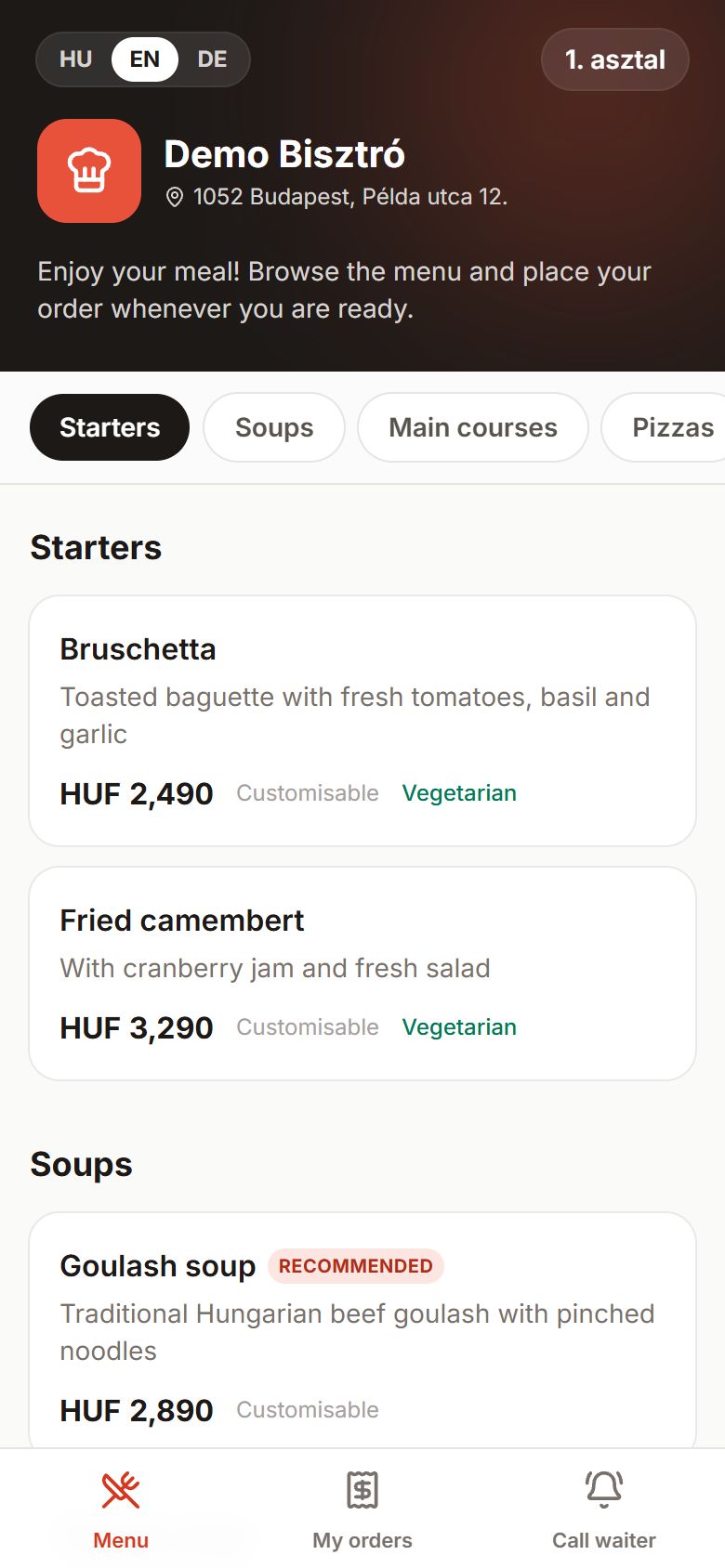
1. Scan
The guest scans the code on the table. The menu opens in the phone’s language – no app. They can now order for 2 hours.
- Guest
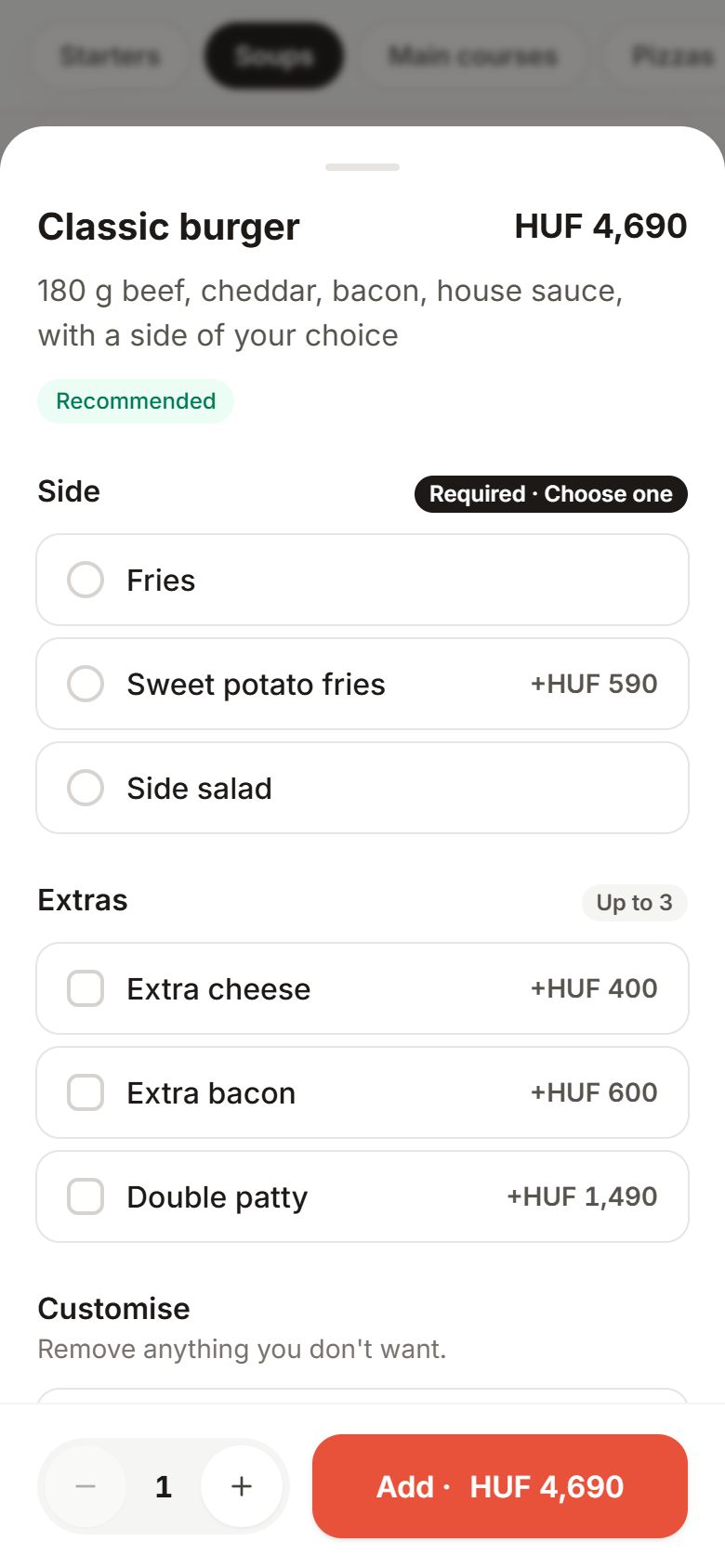
2. Builds the order
Picks sides, sizes and extras, removes what they don’t want, adds a note. The cart suggests extras (“goes well with”).
- Staff
3. The bar receives it
A sound plays and the order appears on the dashboard. Confirm it in one tap with an estimated time – or reject it with a reason.
qrolla.com/admin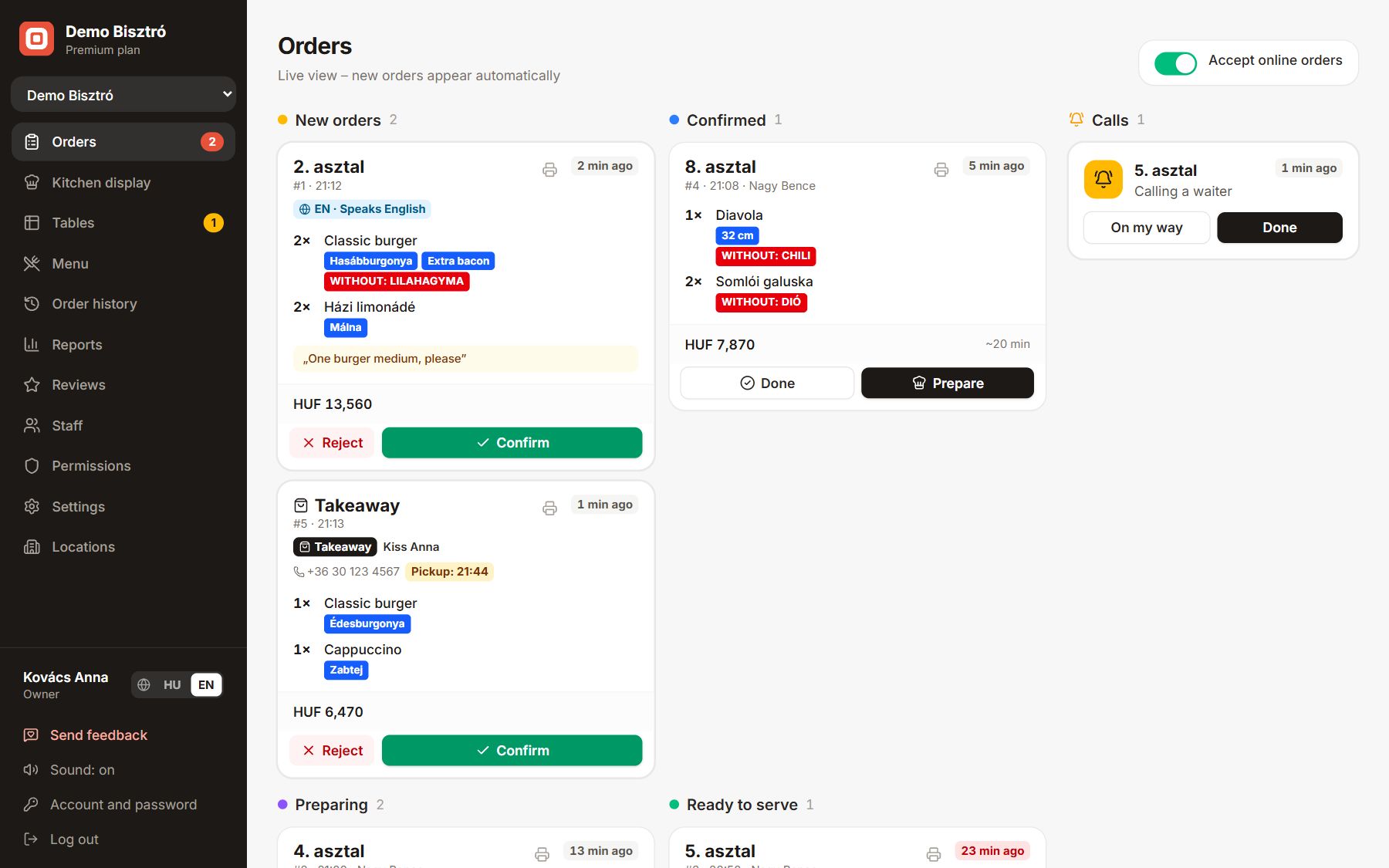
- Kitchen
4. The kitchen prepares it
The ticket appears on the kitchen display (or prints). When it’s done, one tap – the waiter and the guest both see it.
qrolla.com/admin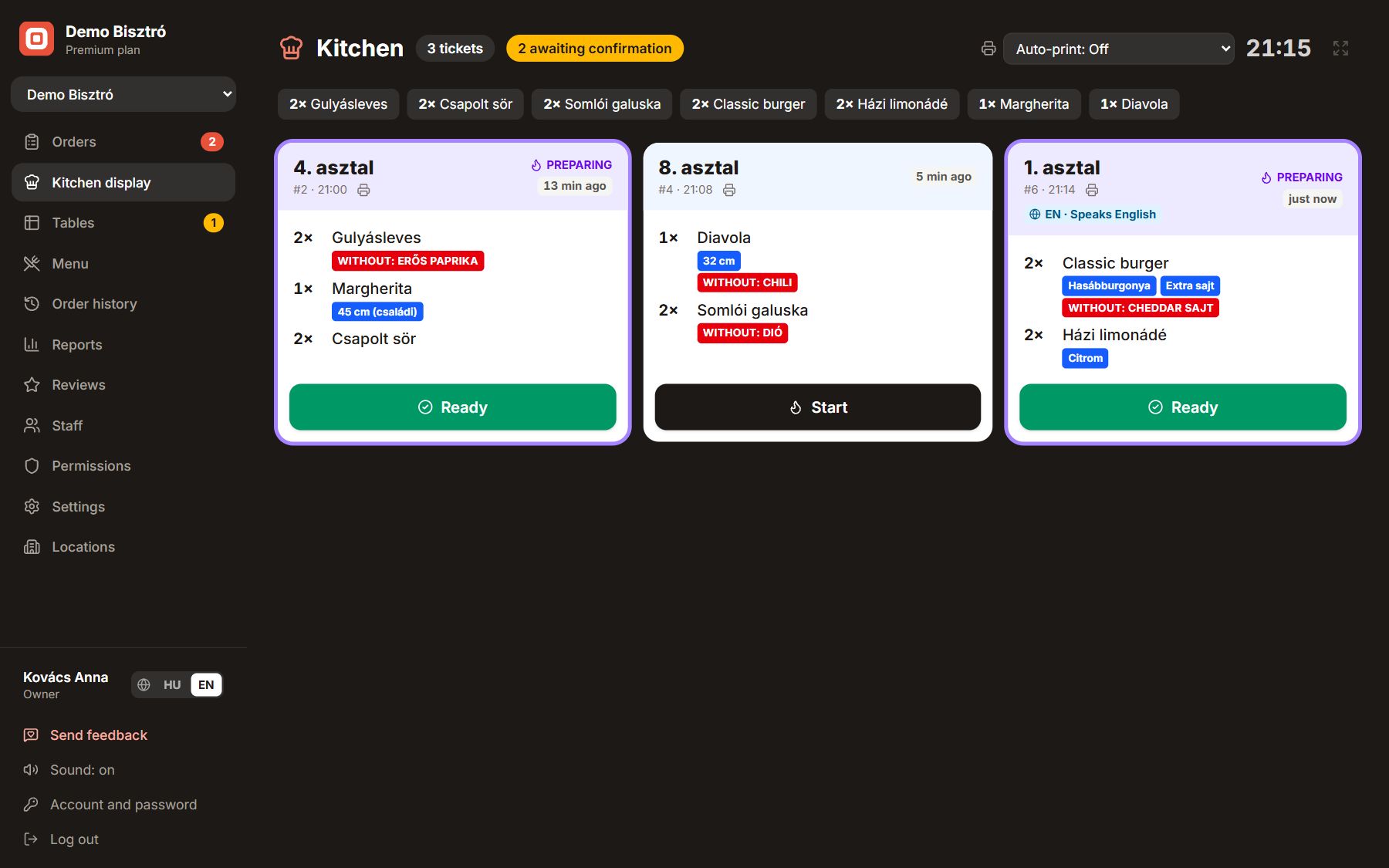
- Guest
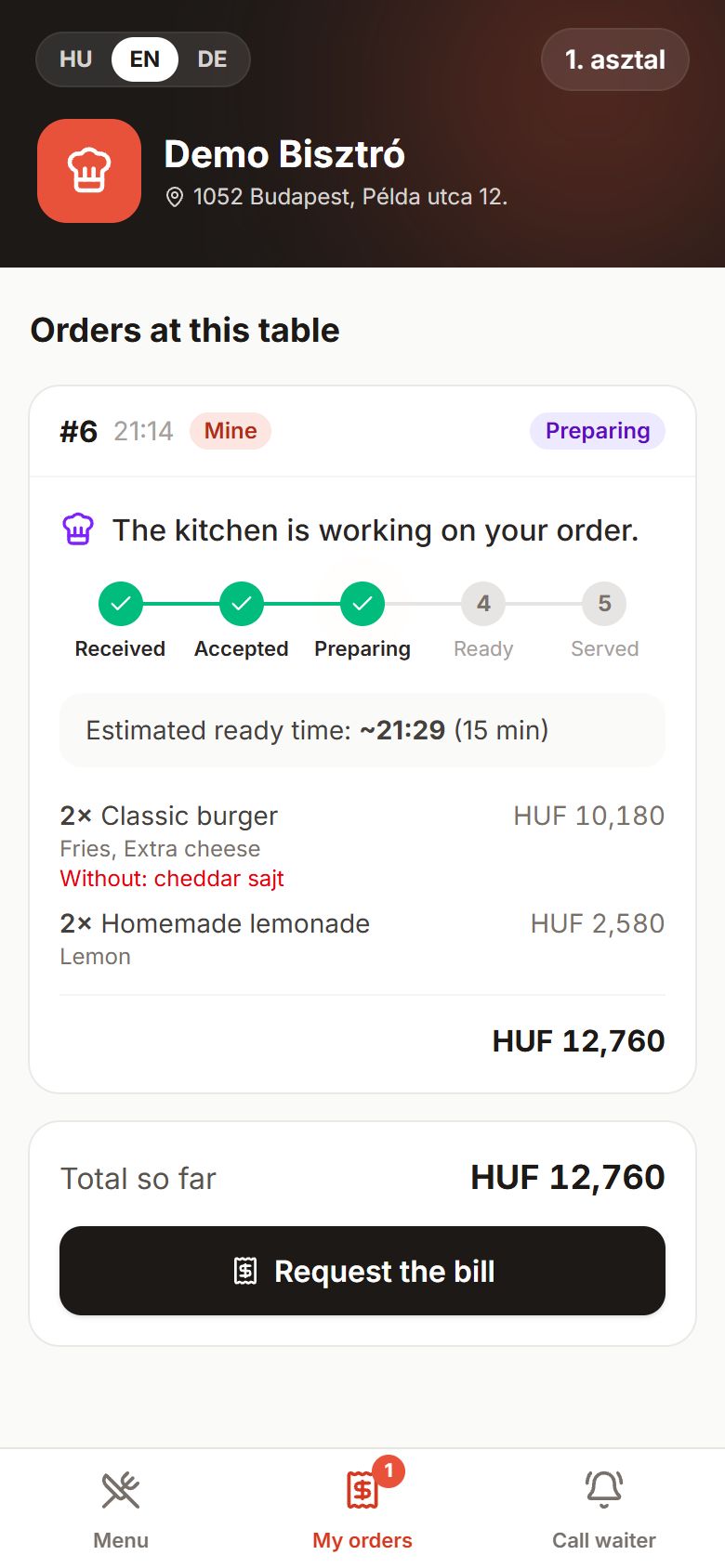
5. The guest follows along
They see every step and get notified when it’s ready. Meanwhile they can order another round to the same table.
- Guest
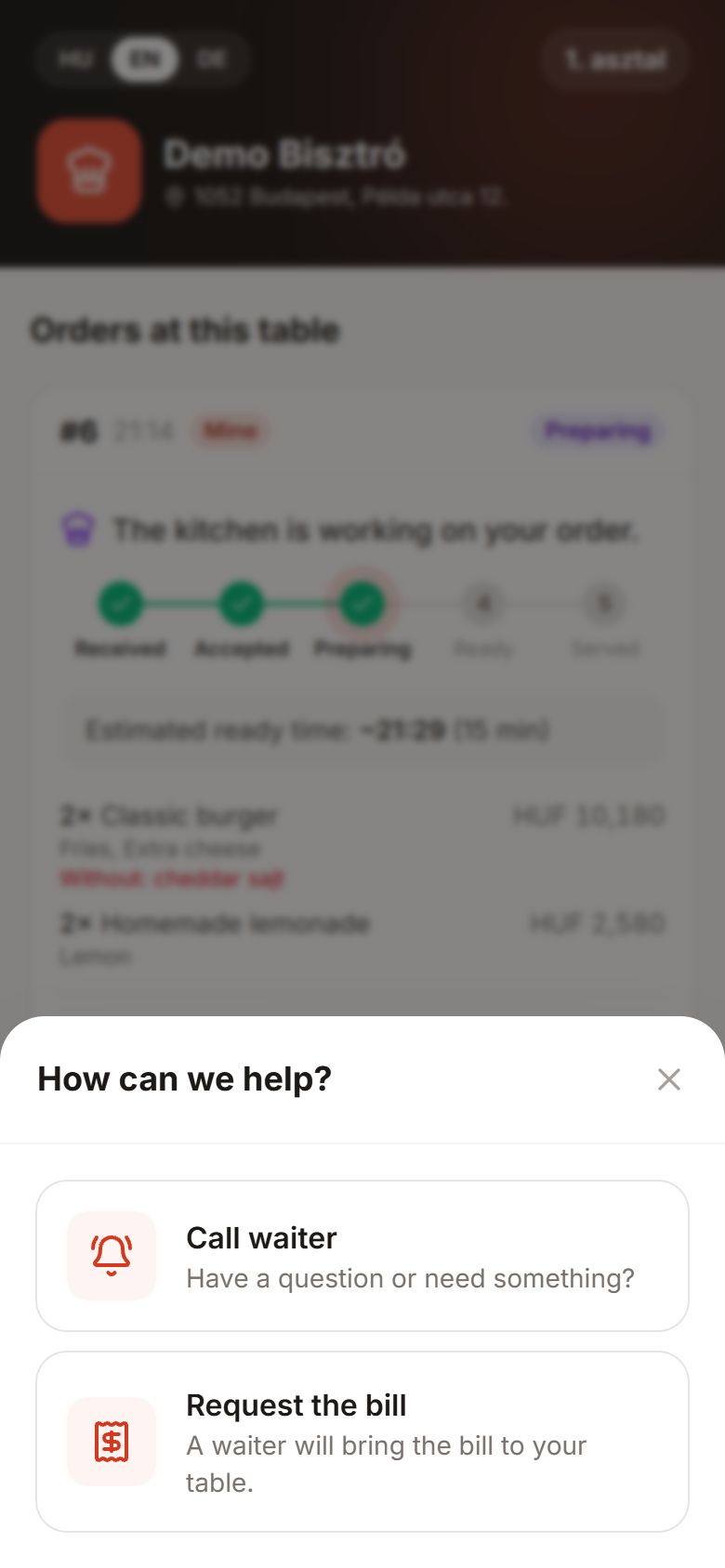
6. Waiter and bill
One tap to call a waiter, and the same for the bill at the end. Staff are alerted instantly.
- Staff
7. Closing the bill
Close the table with its full total and the payment method. The table is free again.
qrolla.com/admin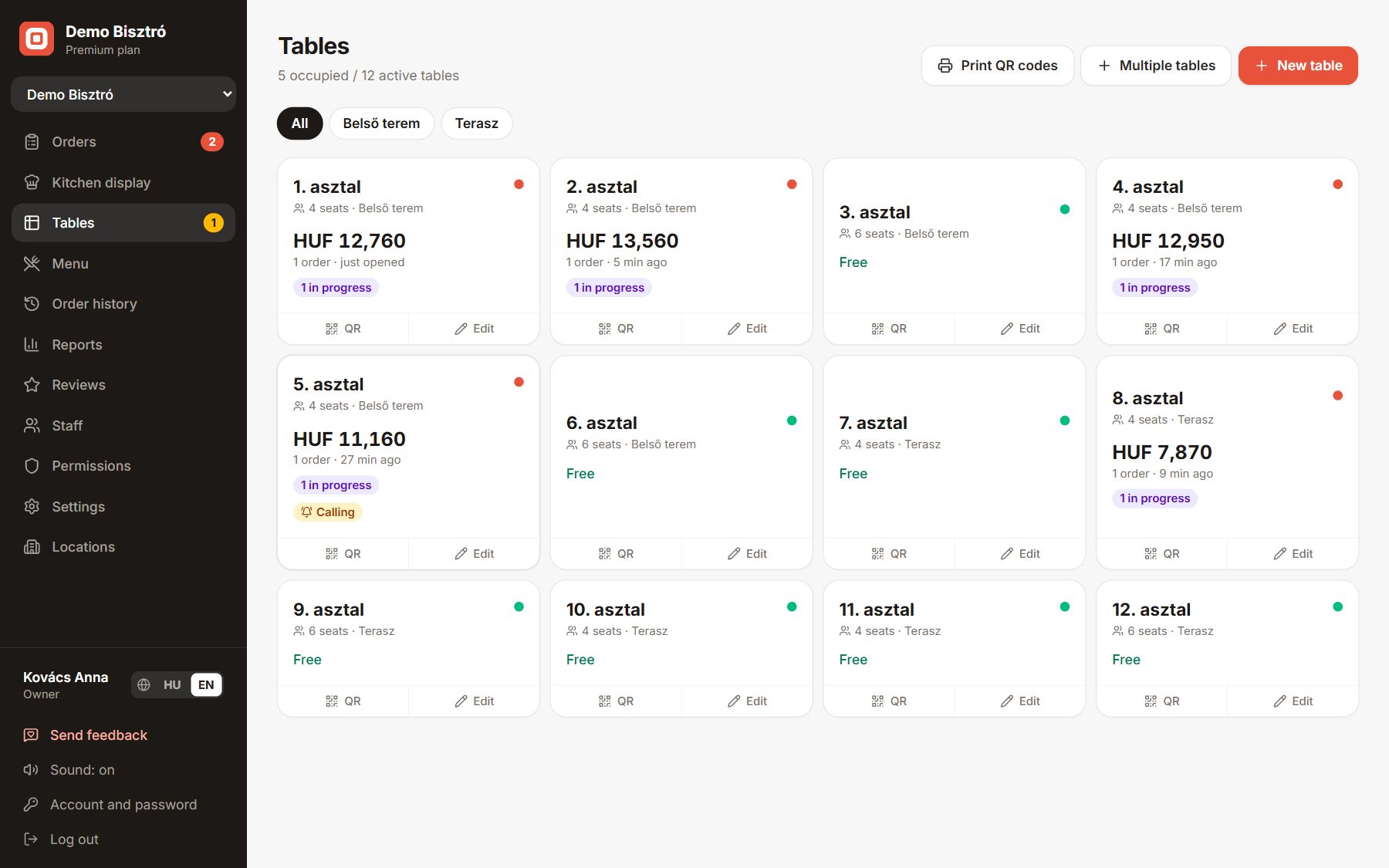
- Guest
8. Rating
The guest rates with one tap. Happy guests are sent to Google; complaints come only to you.
qrolla.com/admin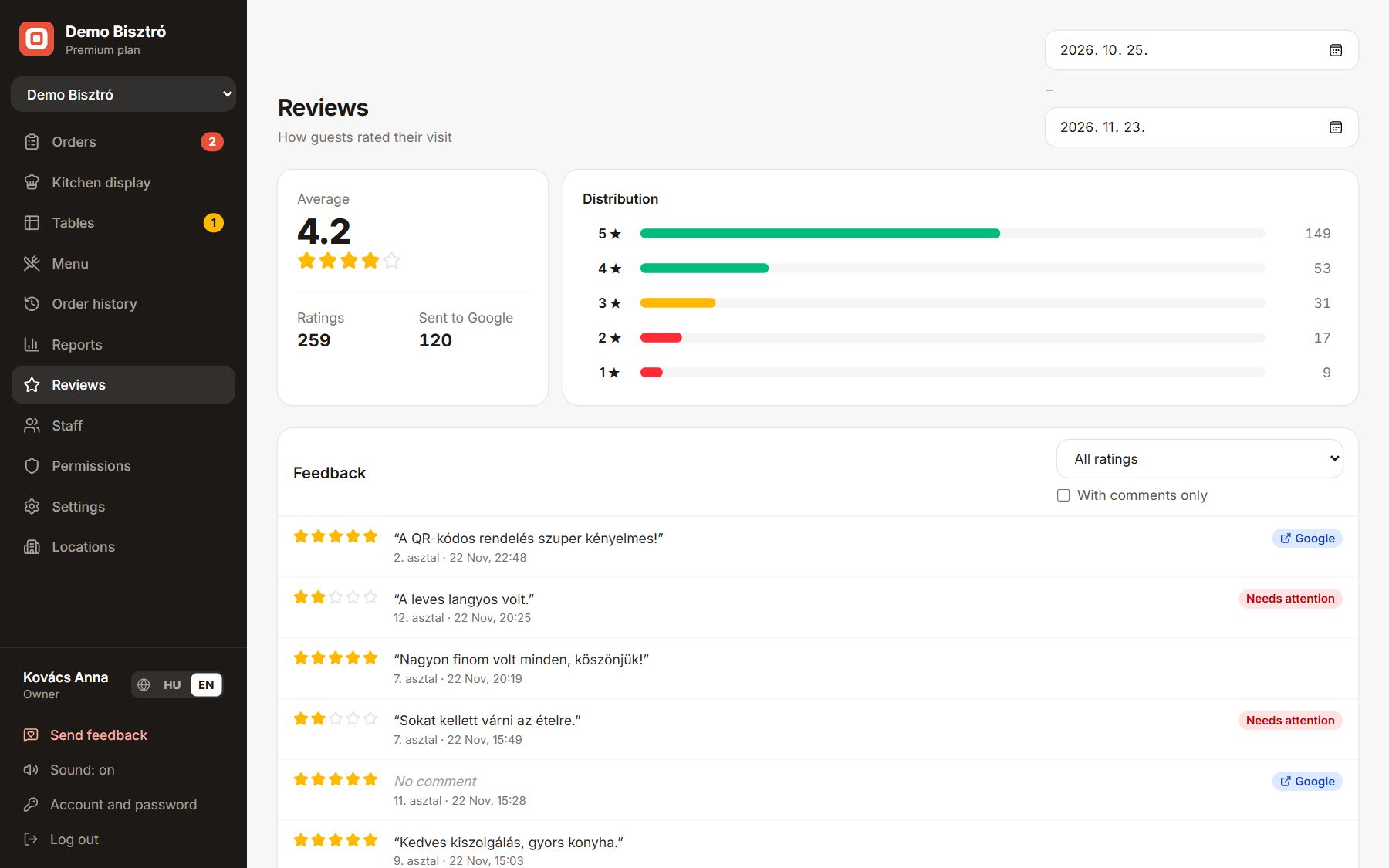
Equipment
What do you need?
No new till, no expensive hardware. Most likely you already have it all.
Internet
Wi-Fi or mobile data for guests and staff.
A device at the bar
Phone, tablet or laptop – any modern browser.
A kitchen screen
A tablet or TV for the kitchen display. Optional if you prefer printed tickets.
Receipt printer
80 mm thermal printer for automatic kitchen tickets.
Roles
Everyone sees what they need
Owner
- Everything
- Plan and locations
- Reports and reviews
Manager
- Menu, tables, team
- Orders and history
- Reports
Waiter
- Orders and calls
- Tables and closing
- Sold-out switch
Kitchen
- Kitchen display
- Preparing / ready
- Sold-out switch
Permissions can be changed per role, and you can create your own roles.